Setup
SOPlayer setup guides
Getting started takes two parts: install the SOPlayer app on your device, then sign in with the details from your IPTV provider. Pick your device below.
Last reviewed
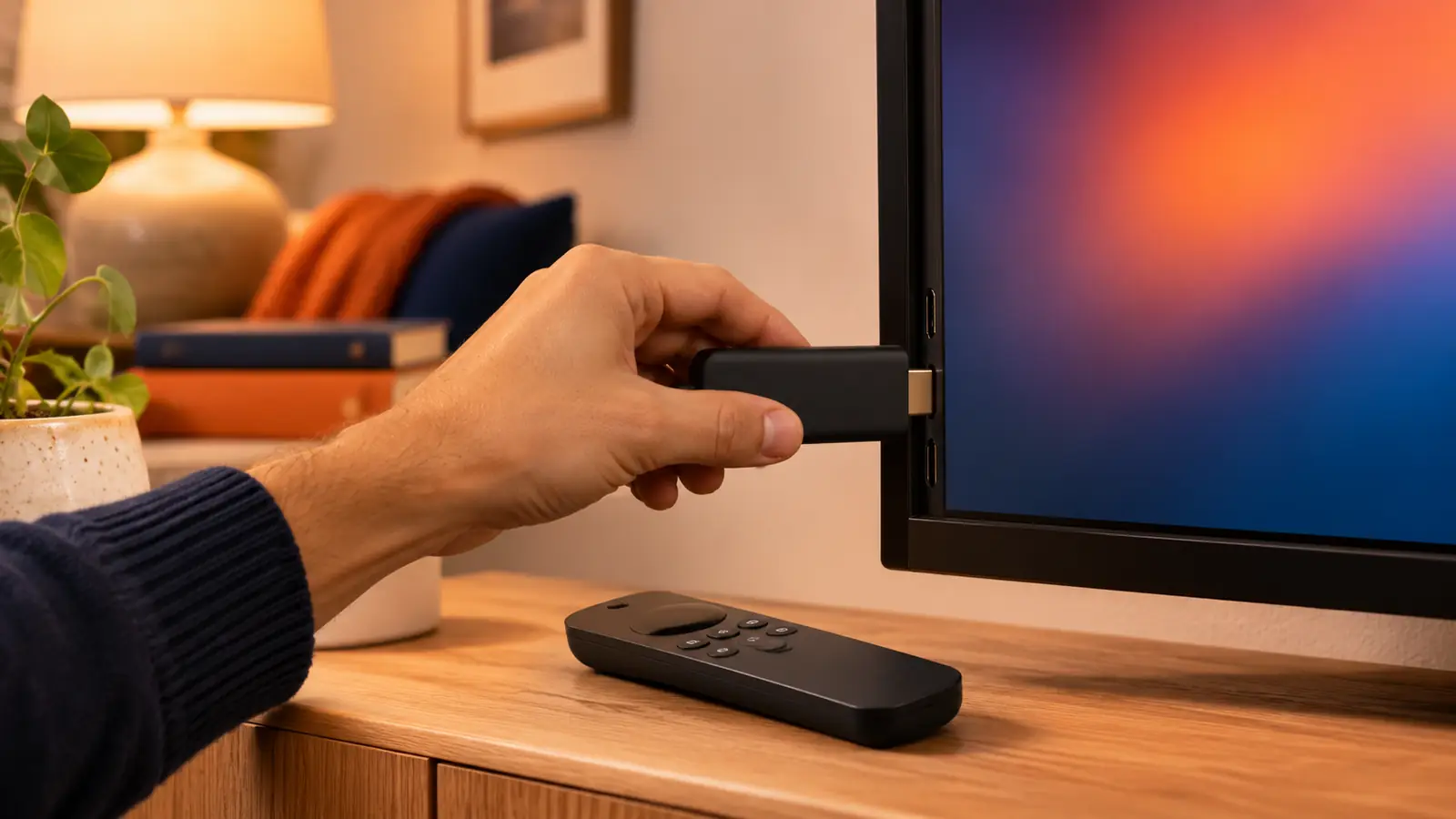
Amazon Fire TV & Firestick
Fire TV Stick, Fire TV Cube and Fire TV smart TVs running Fire OS.
Open guide →
Android TV & Google TV
Chromecast with Google TV, NVIDIA Shield, Android TV boxes, and TVs from brands such as Hisense, Sony and TCL. Android phones and tablets too.
Open guide →
Samsung, LG, Roku, Apple TV & more
Devices without a confirmed SOPlayer app, and the simplest workaround.
Open guide →Before you start
- Have your login details ready. You'll need a Provider ID plus a username and password, or a PIN. Our customers receive these on WhatsApp. What each detail means.
- Check your internet. A wired connection or strong 5 GHz Wi-Fi gives the smoothest playback. How much speed you need.
- Update your device. Install pending system updates before adding new apps.
Where to download SOPlayer
Always start with your device's official app store (Amazon Appstore on Fire TV, Google Play on Android TV and Android phones) and search for “SOPlayer”. Listings can change or differ by country, so what you see may not match older videos and guides.
Why we avoid “SOPlayer APK” sites
Download searches are dominated by third-party mirrors. Their files can be outdated or repackaged, and a modified player sees every login you type into it. Turning on “unknown apps” also removes the store's checks, so if you have to sideload, enable it only for the one app you need and switch it off afterwards.